
Set up BrewSLM and create your first project
By the end of this tutorial you'll have BrewSLM running locally at http://localhost:5173, an admin user you can log in as, an empty project you created from the projects home, and a mental map of the six destinations in the project sidebar (Overview, Data, Train, Results, Ship, Settings) plus the notification bell. Every other tutorial in this track assumes you've done this one — start here.
This is the unglamorous tutorial that every other tutorial leans on. We're going to clone the repo, get the backend running on port 8000, get the frontend running on port 5173, log in, and click through the workspace so you know where things are. No machine learning yet — just enough to land you in front of a working empty project, ready to import data in Tutorial 1.
Key idea
BrewSLM is two processes: a FastAPI backend on port 8000 and a Vite frontend on port 5173. The frontend is what you'll click; the backend is what does the work. They talk to each other over HTTP. In dev mode they both run on your laptop.
What you need installed first
Confirm these are on your machine before you start. From a terminal:
python3 --version    # need 3.11 or later
node --version       # need 18 or later
git --version        # any modern version
If python3 reports 3.10 or earlier: install Python 3.11 from python.org or via your package manager (brew install python@3.12 on macOS, apt install python3.12 on Debian/Ubuntu). If Node is too old: nodejs.org or nvm install 20.
Optional but recommended:
- A GPU with CUDA. Strictly optional — the SmolLM2-135M default model trains on CPU in 10-15 minutes. With a GPU it's 3-5 minutes. You can finish every tutorial without a GPU.
- Redis. Only needed for queued long-running jobs (the Celery worker). The tutorials don't require it — the platform falls back to synchronous execution without it.
- Ollama. The free local synth backend the tutorials use. Install from ollama.com and run
ollama pull llama3.1to grab a teacher model. Without Ollama you'll need OpenAI / Anthropic / DeepSeek API keys for synth generation.
Step 1 — Clone the repository
In a terminal:
git clone https://github.com/TensorGreed/__SLM__.git
cd __SLM__
You should see a project structure like this:
__SLM__/
├── backend/        # FastAPI + SQLAlchemy + alembic — the work happens here
├── frontend/      # React + TypeScript + Vite — the UI
├── data/          # gitignored; created on first backend run
├── README.md
└── package.json   # repo-root tooling
✓ Checkpoint: running ls backend frontend shows both directories. If git clone failed: confirm you have GitHub access and the URL is reachable — public clones don't need auth.
Step 2 — Start the backend (port 8000)
This is the longer of the two installs because Python ML libraries are heavy. Plan for ~3-5 minutes for the first install.
cd backend
python3 -m venv .venv
source .venv/bin/activate       # on Windows: .venv\Scripts\activate
pip install -r requirements.txt
cp .env.example .env
uvicorn app.main:app --reload --port 8000
When the backend starts you'll see log lines ending with:
INFO:     Uvicorn running on http://0.0.0.0:8000 (Press CTRL+C to quit)
INFO:     Started reloader process [12345]
INFO:     Started server process [12346]
INFO:     Application startup complete.
Leave that terminal running. The --reload flag means the backend will hot-reload when you edit Python files — handy if you peek at the code while doing the tutorials.
✓ Checkpoint: open http://localhost:8000/docs in your browser. You should see the FastAPI auto-generated API docs page (Swagger UI) with a long list of endpoints. If the page doesn't load: check the uvicorn terminal for errors; the most common issue is a missing dependency that pip install skipped silently — re-run pip install -r requirements.txt.
GPU users
For real training on a GPU, install the GPU-flavoured requirements instead: pip install -r requirements-gpu.txt, then install a CUDA-enabled torch wheel that matches your CUDA version (see the README for vendor-specific instructions). For the tutorials' default model (SmolLM2-135M) CPU is fine.
Step 3 — Start the frontend (port 5173)
Open a second terminal — leave the backend running in the first one.
cd __SLM__/frontend
npm install
npm run dev
npm install takes 1-3 minutes the first time. When the dev server starts, you'll see:
  VITE v7.x.x  ready in 432 ms

  ➜  Local:   http://localhost:5173/
  ➜  Network: use --host to expose
✓ Checkpoint: open http://localhost:5173 in your browser. The page should redirect you to /login automatically. You should see the BrewSLM logo, a "Sign in" form, and a "Sign in with SSO" button. If the page is blank: check the frontend terminal — usually a missing env var or a port conflict (5173 already in use). The frontend hot-reloads on file edits the same way the backend does.
Step 4 — Log in as the bootstrap admin user
BrewSLM ships with a "local login" path that auto-provisions new users on first sign-in. In dev mode (AUTH_ENABLED=false is the default in .env.example), you can use any username and a fixed dev password. Use the username admin — the platform treats this username specially as the bootstrap user with full project access.
On the login page:
- In Username, type
admin. - In Password, type the value of
API_KEYfrom yourbackend/.envfile. The default value from.env.exampleissk-mock-admin-key. - Click Sign in.
✓ Checkpoint: after sign-in you should land on the projects home. The header shows admin in the top right next to the help (?) icon and the notification bell, with a + New Project button on the left of them. Below the search box and the All / Draft / Active / Completed filter sits "Or begin with a starter project" — three quick demos (Demo · PII / PCI Detector, Demo · Sentiment classifier, Demo · Support FAQ) and a row of starter templates. If you see "you don't have access to any projects" instead, you logged in as a non-admin user (the default ENGINEER role doesn't get any projects until an admin grants access). Sign out, sign back in with the exact username admin.
Production auth is different
In a real deployment you'd set AUTH_ENABLED=true, configure OIDC, and admins would manage user → project memberships explicitly. The auto-provisioning + dev-password path is dev-only convenience. Don't ship a real deployment with sk-mock-admin-key as the API key.
Step 5 — Create your first project
On the projects home:
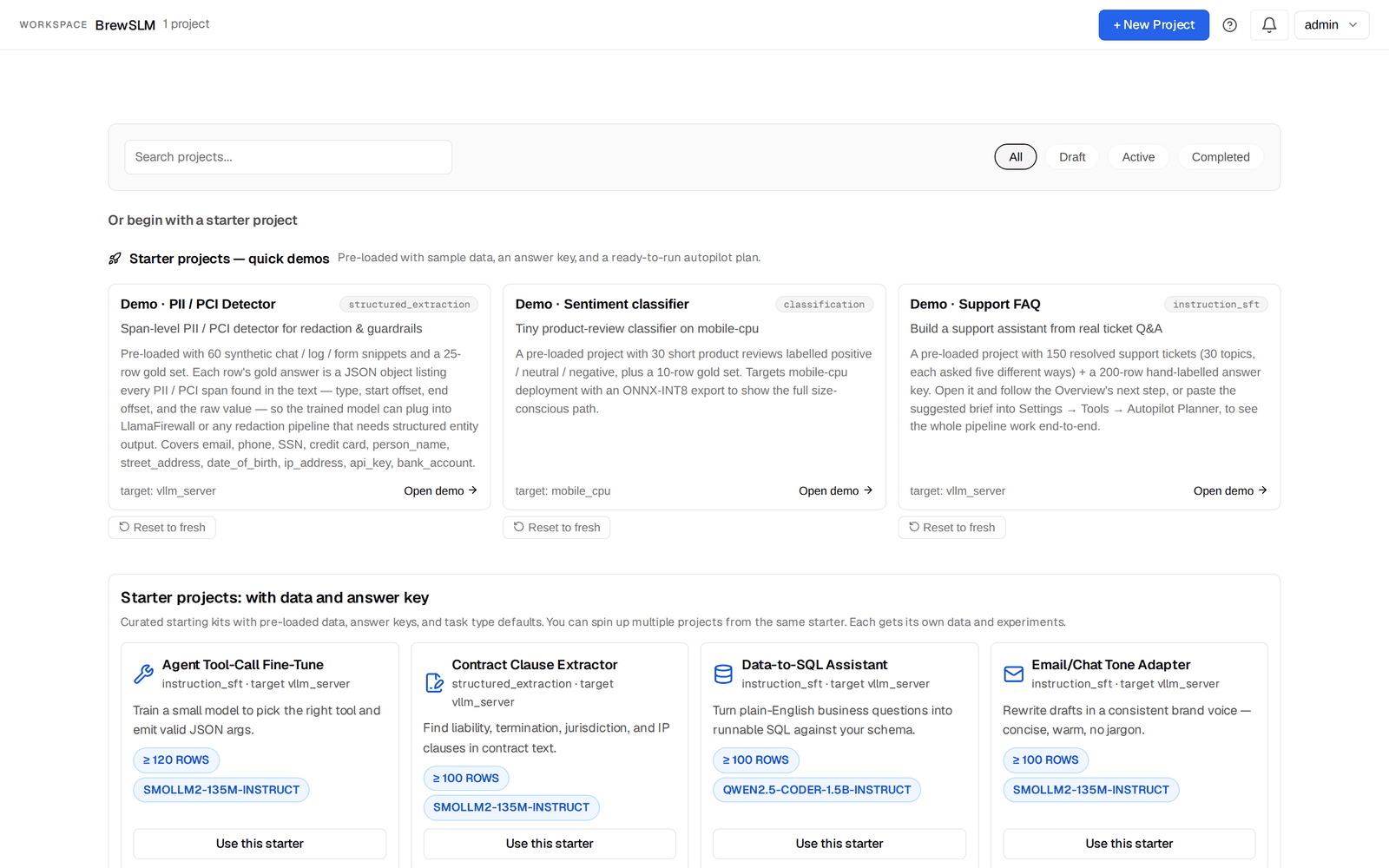
- Click the + New Project button (top right, next to the bell).
- The New BrewSLM Project dialog opens. Fill in:
- Project Name: anything memorable — for example
tutorial-0-test. - What problem do you want this model to solve?: one or two plain sentences, e.g. "Answer customer support FAQs from our resolved tickets. Never hallucinate beyond the dataset." BrewSLM reads this brief and sets the defaults — base model, task profile, output schema. There is no recipe dropdown any more; the task shape comes from the brief and the data, and you can change it later (Train → Task → Change, or Data → Labels → "What kind of task is this?" → Change).
- Advanced options: leave collapsed. It holds a description override, sample inputs / outputs, a base model and deployment target, and the link to import a
brewslm.yamlmanifest instead. Domain packs are not part of creation — they live under Settings → Tools → Domain Packs (Tutorial 8 covers them).
- Project Name: anything memorable — for example
- Click Create project.
The alternative, if you'd rather start with data already in place: under "Or begin with a starter project" click Open demo on Demo · Support FAQ. That is the project Tutorial 1 works in.
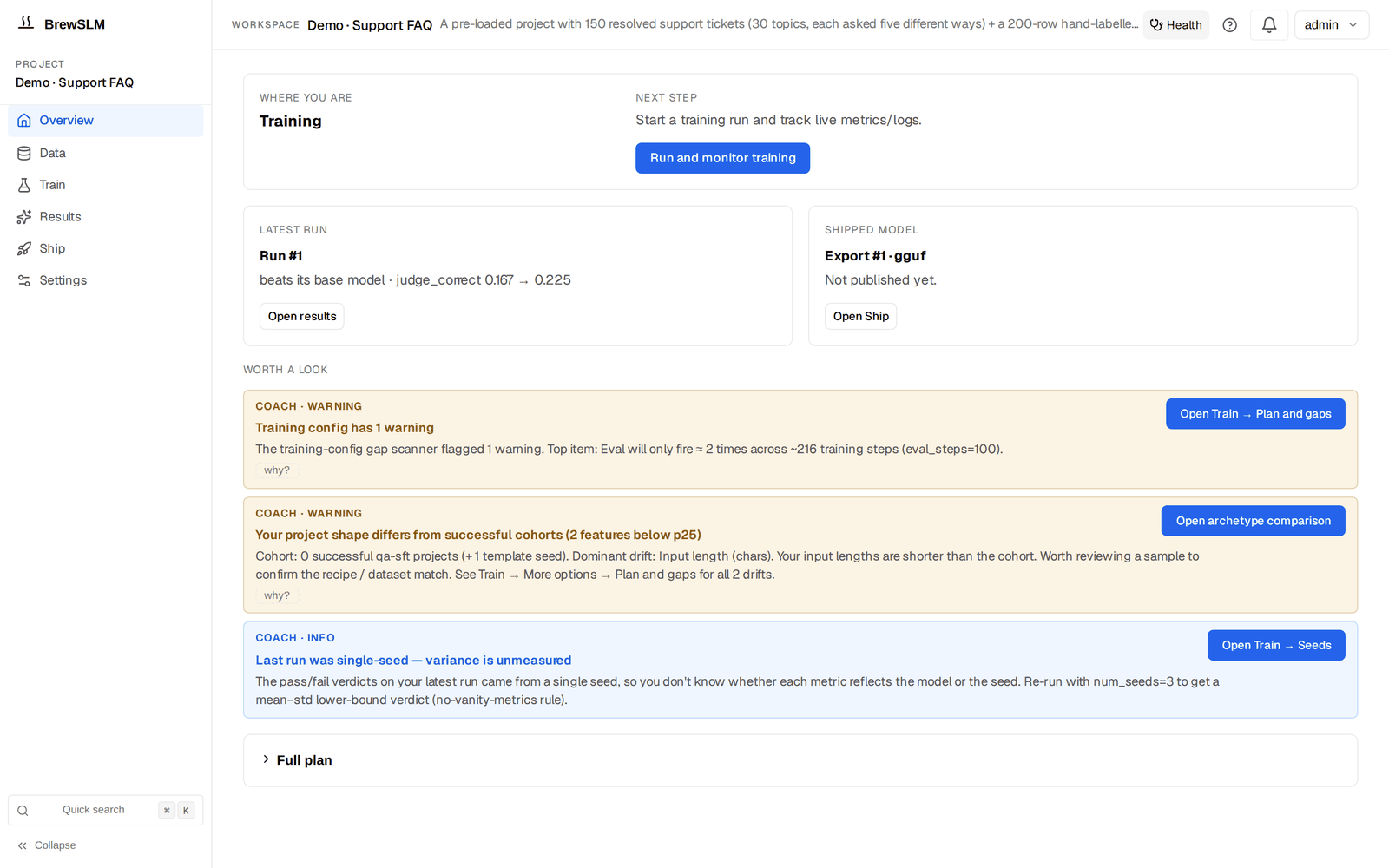
✓ Checkpoint: you should now be on the project's Overview. The URL looks like /project/1 (the project id is 1 since this is your first). The left sidebar lists six destinations: Overview, Data, Train, Results, Ship, Settings, with Quick search ⌘K at the bottom. The top bar shows the project name and a Health chip. The Overview's "Where you are" card says Data Ingestion and "Next step" offers Import source data — expected, there's no data yet.
Step 6 — Tour the main surfaces
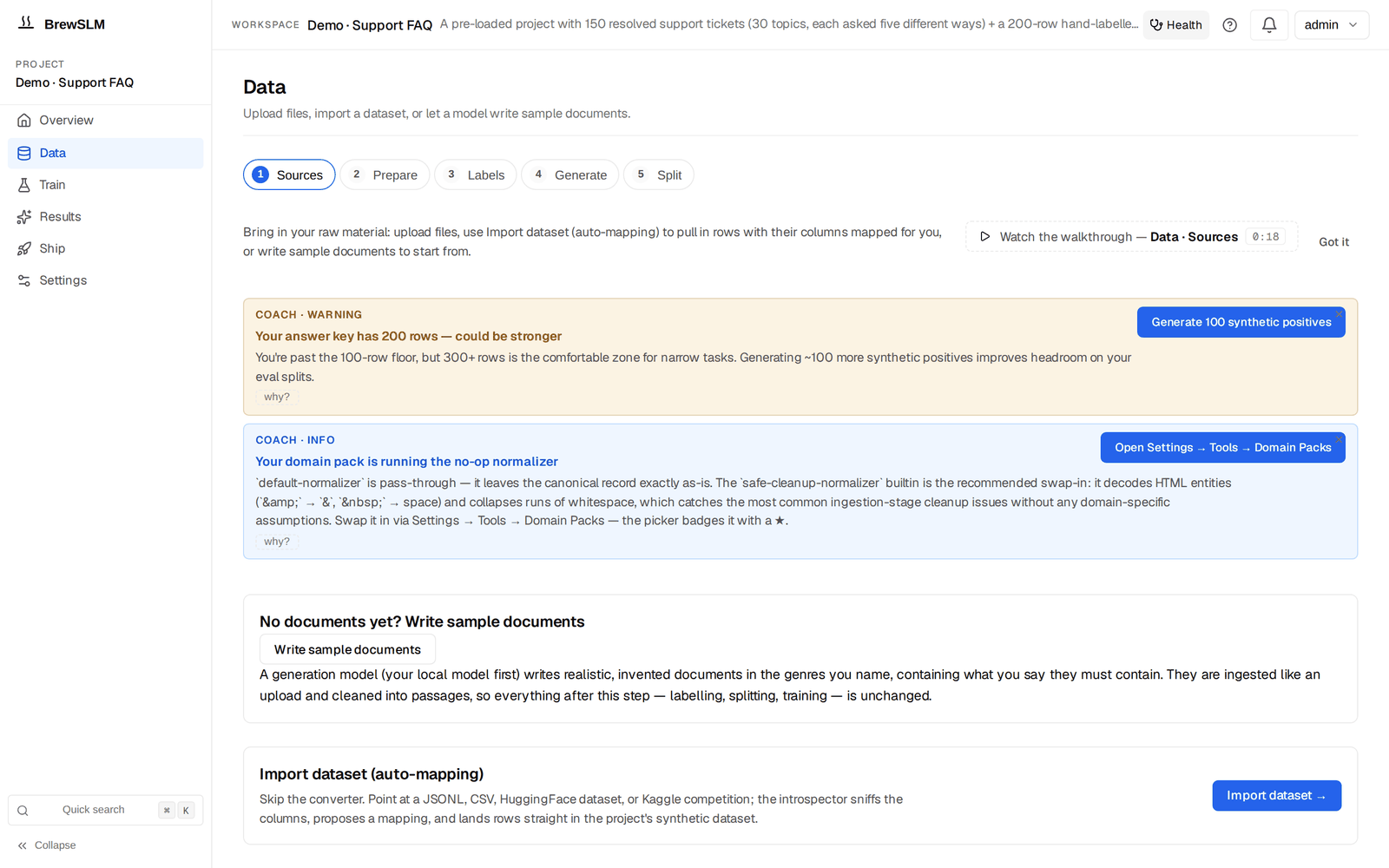
Take five minutes to click through the six destinations so the rest of the tutorials don't feel like a treasure hunt. Every project has the same sidebar, and nothing is hidden behind a mode switch. The tutorials write click paths as Destination → Step/Tab → control, e.g. Data → Generate → Generation Mode.
- Top bar
- Persistent across every page. From left: the BrewSLM logo (back to the projects home), the project name and its description, a Health chip, the help (?) icon, the notification bell and the user menu. The bell tracks every background job — synthetic generation, training runs, evaluations, exports, RAG comparisons. Click it to see in-flight and recently completed jobs; each one deep-links to where its result landed.
- Left sidebar — six destinations
- Overview · Data · Train · Results · Ship · Settings, in pipeline order, plus Quick search (⌘K / Ctrl+K — a command palette that jumps to any step, section or tab by name) and Collapse. The active destination is highlighted.
- Overview (
/project/<id>) - "Where you are" (the current stage) and "Next step" with one button; a Latest run card (lift against the base model, "Open results"); a Shipped model card (export, Hub link, "Open Ship"); Worth a look — up to three Coach notices with a one-click action and a "why?" trace; and a collapsed Full plan (checklist + quickstart). When in doubt, come back here and press the Next step button.
- Data (
/project/<id>/data?step=…) - Five numbered steps across the top: 1 Sources (upload files, Import dataset (auto-mapping), Write sample documents), 2 Prepare (cleaning: chunk size, Redact PII & Secrets, Clean All Documents), 3 Labels (confirm "What kind of task is this?", the answer key — the gold evaluation dataset — with its diagnostics), 4 Generate (synthetic data: generation mode, provider, model, playbooks), 5 Split (train / validation / test). Each step is a short form on top plus a collapsed Details drawer holding the advanced panels — review queue, playbook center, quality and safety, schema mapping, dataset versions. The tutorials name those sections as Data → Step → Details → Section. A one-line tip and a "Watch the walkthrough" link sit under the step bar.
- Train (
/project/<id>/train) - One form: Base model (+ Browse), Task (read-only + Change), Seeds (One run / Three seeds), Run name, a readiness line, and the Train button — which opens a confirm dialog with the resolved config and an estimate before Launch. Everything else waits under More options: Model and hyperparameters, LoRA and advanced training, Seeds, Checks (preflight), Cloud burst, Training presets, Plan and gaps (config gaps + trainability forecast), Base model registry, Task type, Pipeline presets, Adapter Studio, Tokenization. The runs list with each run's live dashboard sits below the form.
- Results (
/project/<id>/results?tab=…) - Four tabs. Verdict ("Did it work?") — the summary card (better than the base model / within noise…), run picker, the pass/fail rules, the scorecard. Failures ("Where does it fail?") — failure clusters, eval gaps, built-in checks, custom checks, the rule-set editor, the reroute recommendation, the answer-key review. Compare — other runs and models, external benchmarks, the Auto-RAG comparison. Try it — the chat playground: pick a training run, set temperature and max tokens, chat. The most reliable smoke test for "did the model actually learn what I trained it on?"
- Ship (
/project/<id>/ship?stage=…) - Four stages: Package (the New export form — run, format, quantization, deployment targets — and the Releases table), Publish (a completed Hugging Face export to the Hub), Deploy (serve / deploy plans, served versions), Monitor (run events, failure clusters, drift).
- Settings (
/project/<id>/settings) - Appearance (Light / Dark / Match system), Workspace (Show inline tips — the Coach notices; Start advanced sections collapsed), export the project manifest, and a collapsed Tools section for the long tail: Autopilot Planner, Workflow Builder, Domain Packs, Domain Profiles, Extension Studio, Autopilot decisions.
You don't have to memorise this — the tutorials reference these destinations and steps by exact name, and the Overview's Next step button always points at the one that matters now.
Optional — Start the worker (only for big jobs)
For long-running queued jobs (real GPU training, big synth runs, remote dataset imports), BrewSLM uses Celery. The tutorials don't strictly require it — small synth runs and the SmolLM2 default model finish synchronously. But if you plan to run heavy GPU training, start the worker in a third terminal:
cd backend
source .venv/bin/activate
celery -A app.worker.celery_app worker --loglevel=INFO --pool=threads --concurrency=2
You'll need Redis running for this — install Redis from your package manager (brew install redis / apt install redis-server) and start it (redis-server). If you skip this, queued jobs will sit in the bell as "queued" forever — that's the symptom.
Optional — Browse the API docs
With the backend running, http://localhost:8000/docs serves Swagger UI for every endpoint. Useful when you want to know what's available behind a panel ("what does that 'Run prepare now' button POST to?") or you're scripting BrewSLM from a notebook. The right side of the page shows endpoint groups: Projects, Datasets, Experiments, Evaluation, Synthetic, Coach, Playground, etc. Each endpoint has a "Try it out" button — handy for sanity checks.
Common first-time issues
- Port 8000 or 5173 already in use
- Another process is hogging the port. Find it with
lsof -i :8000(macOS/Linux) ornetstat -ano | findstr :8000(Windows) and kill it, or start the backend on a different port (uvicorn ... --port 8001). If you change the backend port, the frontend's dev proxy infrontend/vite.config.tsneeds to match. - pip install fails on the heavy dependencies (torch, transformers)
- The most common cause is an older Python (3.10 or earlier) where some wheels aren't available. Confirm
python3 --versionshows 3.11+. On Apple Silicon, setSYSTEM_VERSION_COMPAT=0beforepip installif you see arm64 wheel resolution issues. - npm install fails with peer-dep warnings
- For Node 18+ those warnings are usually safe to ignore — the platform tests against Node 18 + 20. If npm errors hard, try
npm install --legacy-peer-deps. - Login succeeds but I see "no project access"
- You logged in with a non-admin username. The platform auto-provisions new users with the ENGINEER role which has no project access by default. Sign out (top-right user menu) and sign back in with
adminas the username — that user has full bootstrap access. - The bell is empty even after I click "Run something"
- Background jobs need either Celery+Redis (real queue) or sync execution (default fallback). If you're seeing "queued" status that never progresses, you started a Celery-routed action without Celery running — either start Celery (see above) or check that the action's endpoint isn't passing
async_job=true. - The frontend can't talk to the backend (network errors in the browser console)
- Confirm both processes are running. Open
http://localhost:8000/docsdirectly to verify the backend; openhttp://localhost:5173to verify the frontend. If both load but the frontend firesfetch('/api/...')calls that 404, the dev proxy isn't routing — checkfrontend/vite.config.ts.
What's next
You have BrewSLM running, an admin user, and an empty project. The other tutorials assume exactly this state. Pick one:
- Tutorial 1 — Support FAQ assistant with rag-protocol
- The canonical workflow. Build a small model that grounds answers in your FAQ corpus, cites the source chunk, and refuses cleanly off-topic. Best first tutorial if you want to ship a customer-facing retrieval-grounded assistant.
- Tutorial 2 — SQL injection classifier (security)
- A binary classifier for inline security checks. Best first tutorial if you want to learn the classification recipe + the hard-negatives playbook, especially if your team is security-focused.
If your project doesn't match either of these shapes (you want extraction, multi-class triage, code review, etc.), wait for the upcoming tutorials — the tutorials hub tracks the roster + status.
Key terms (just the bare minimum for now)
- Backend
- The FastAPI Python process at
http://localhost:8000. Handles all data, model, and job work. Survives frontend restarts. - Frontend
- The Vite/React UI at
http://localhost:5173. The thing you click. Talks to the backend over HTTP. - Project
- One BrewSLM training effort. Has one task shape, one answer key, one dataset family, one trained model (or many runs comparing variants). Multiple projects per BrewSLM install are normal.
- Recipe
- The training plan template — base model + adapter + pass/fail rule set. BrewSLM picks one from your brief and your data; change it under Train → Task → Change. The full list (rag-protocol, classification, qa-sft, span-extraction, summarization, code-review, generic-sft) is covered across the other tutorials.
- Data
- The destination for getting data into shape, in five steps: Sources, Prepare, Labels (the answer key), Generate (synthetic data), Split. Where you spend most of your time before training.
- Answer key
- BrewSLM's name for the gold set — the trusted rows every run is scored against. Lives under Data → Labels.
- Notification bell
- Top-right icon. Tracks every background job. Tells you when a 30-second synth generation is done or a 30-minute training run is converging.
- Admin user
- The bootstrap account with full project access. Always log in as
adminfor the tutorials — other usernames auto-provision as engineers with no project access.
Check yourself
Answers are saved to this browser.